

 Zobacz plany
Add a White Background to a Photo for a Simple and Clean Style
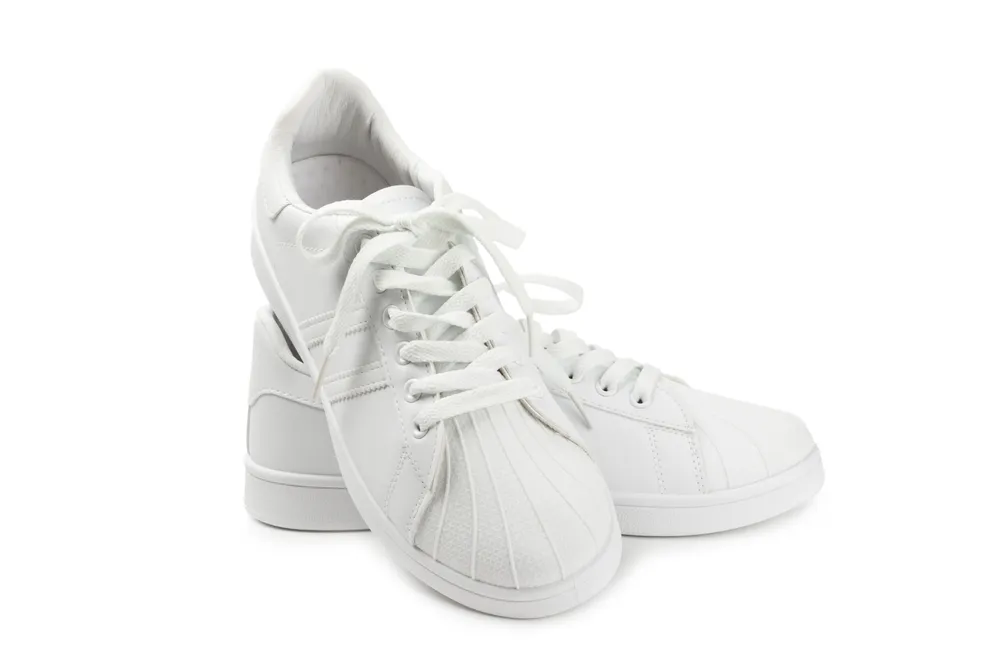
A white background can help isolate the subject of the photo, making it stand out more prominently. This is often done in product photography and brand photos to remove distractions and draw attention to the main hero of your photo
Wypróbuj terazHow to Use the White Background Maker?
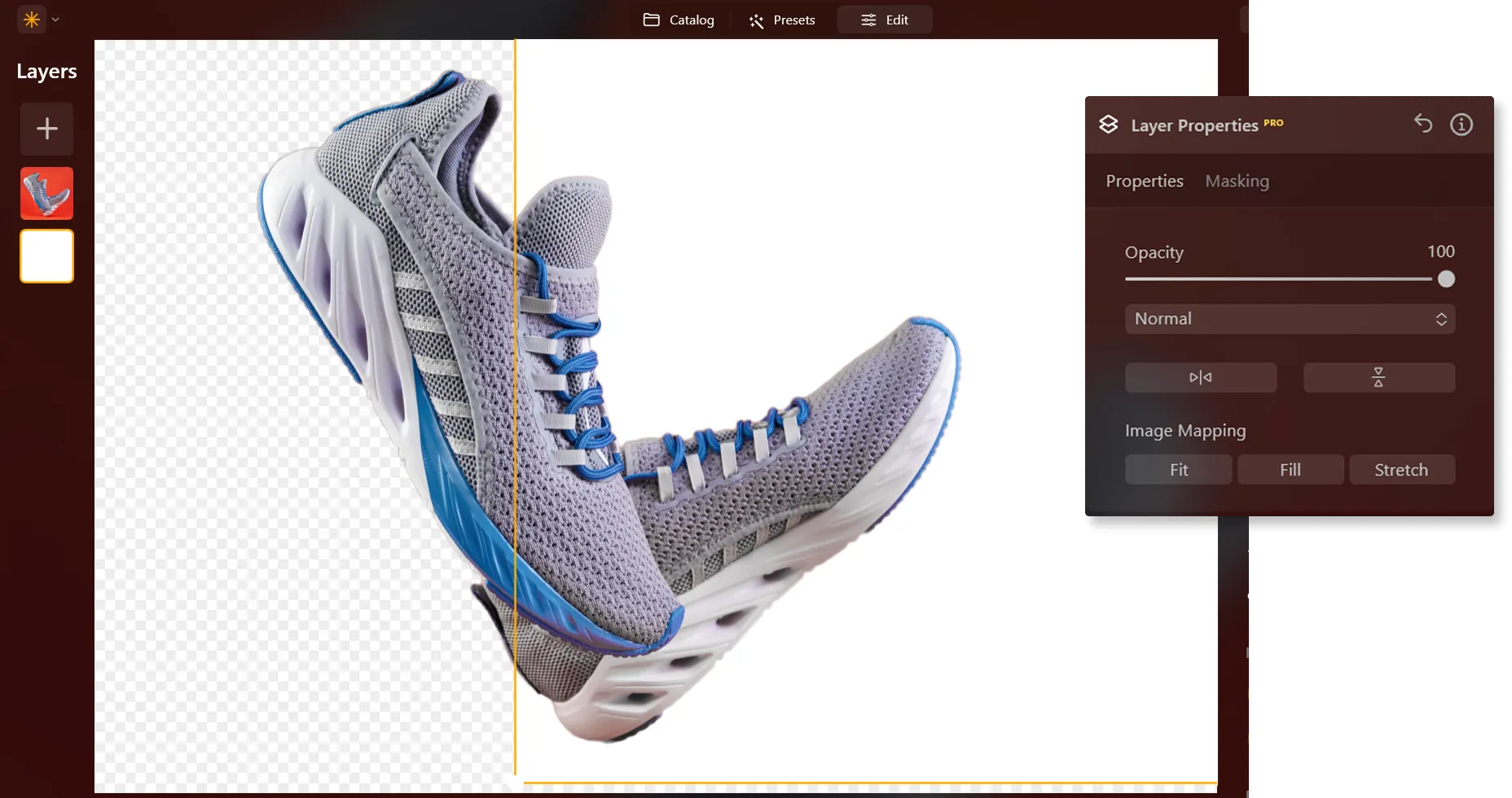
Remove the background in one click, and add a new white backdrop in Layers in a click.



Why is Making a Background White in Your Photo a Game-Changer?
Evoking Emotion Through Simplicity With the White Background Photo Editor


How to Seamlessly Add a White Background to a Photo?
Here’s a step-by-step guide on using Background Removal AI in Luminar:

Select an image: click the Edit tab

Layers Properties: select the Masking tab and choose Background RemovalAI

Selection: Select the chosen main object or choose from additional elements found in the image.

Usuń tło: Click “Remove” to initiate the Background Removal process. Luminar will remove the image’s background, revealing a transparent checkbox background.

Click Refinement Brush for additional finetuning: A Transition Mask will appear, highlighting Transition in a white checkerboard pattern, Object in orange, and Background in blue. Select a brush and apply it to refine each section.

Ostateczny obraz zostanie wyświetlony z przezroczystym tłem. Użyj Warstw, aby dodać nowe tło i przenieś warstwę na dół palety Warstwy. Spowoduje to wyświetlenie obrazu na nowym tle.
Poznaj inne funkcje



Dodaj tło do zdjęcia

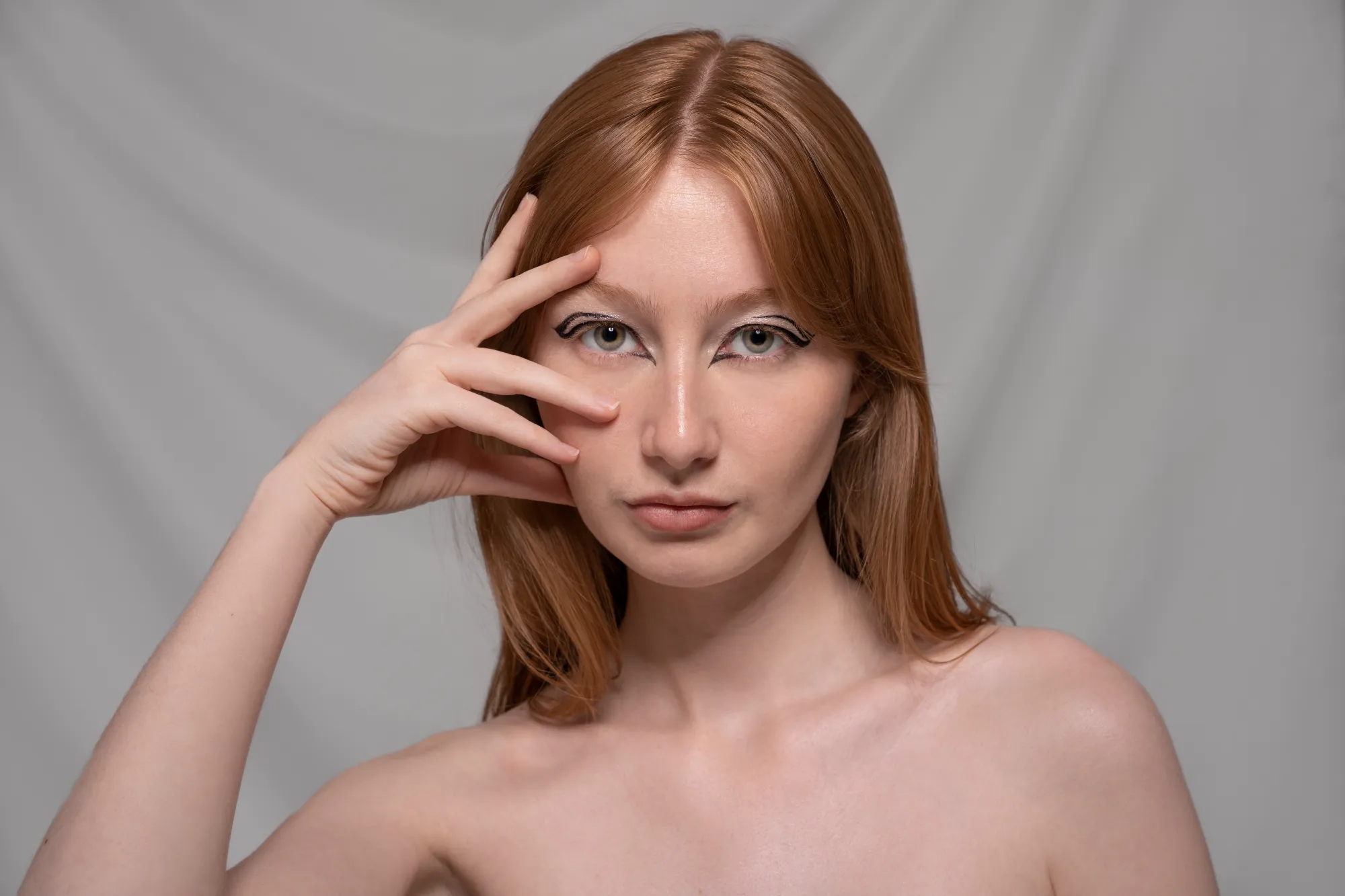
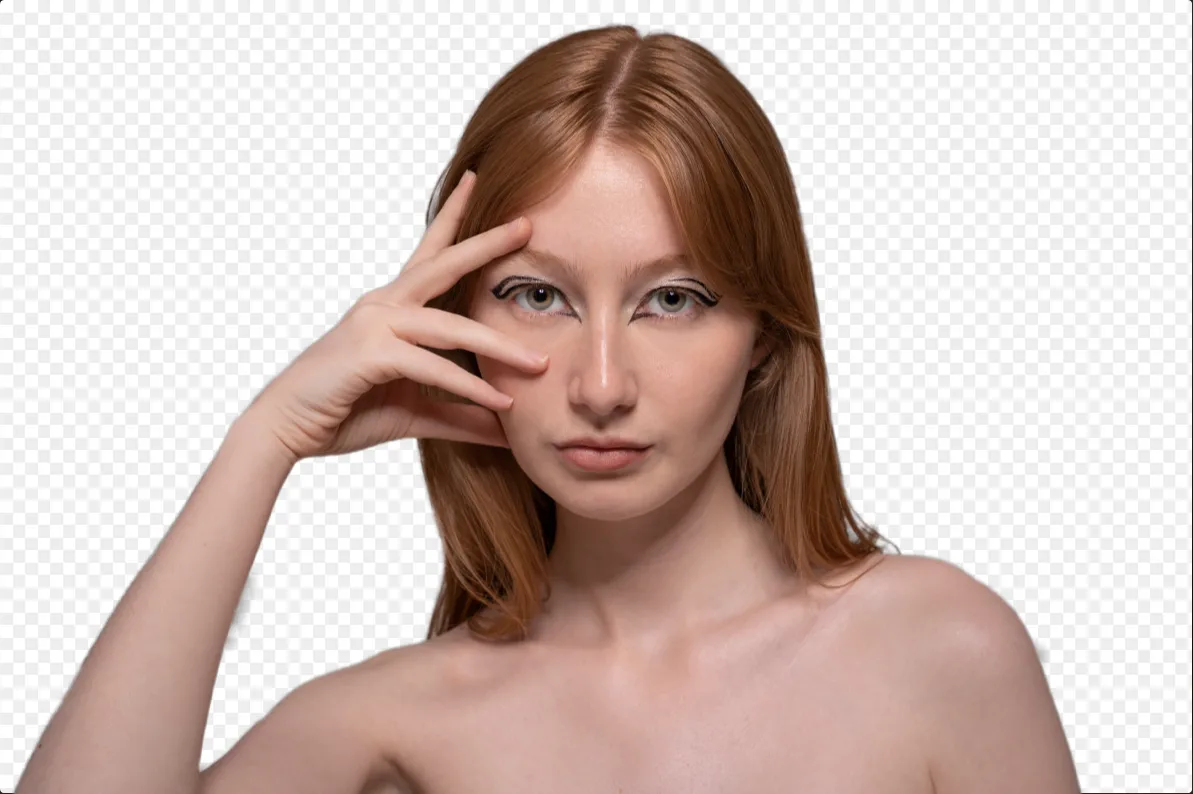
Przezroczyste tło


Zmień kolor tła


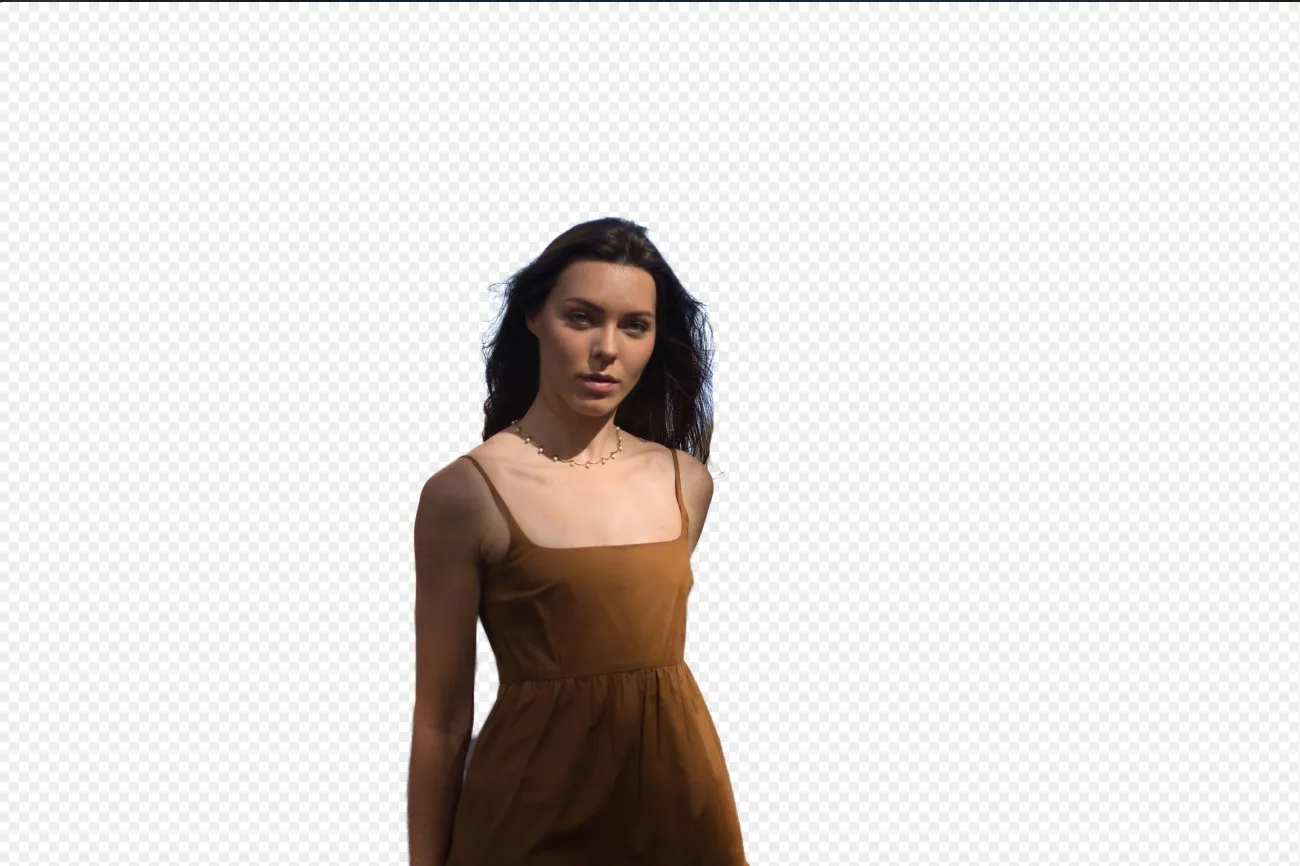
Usuwanie tła AI



Remove White Background

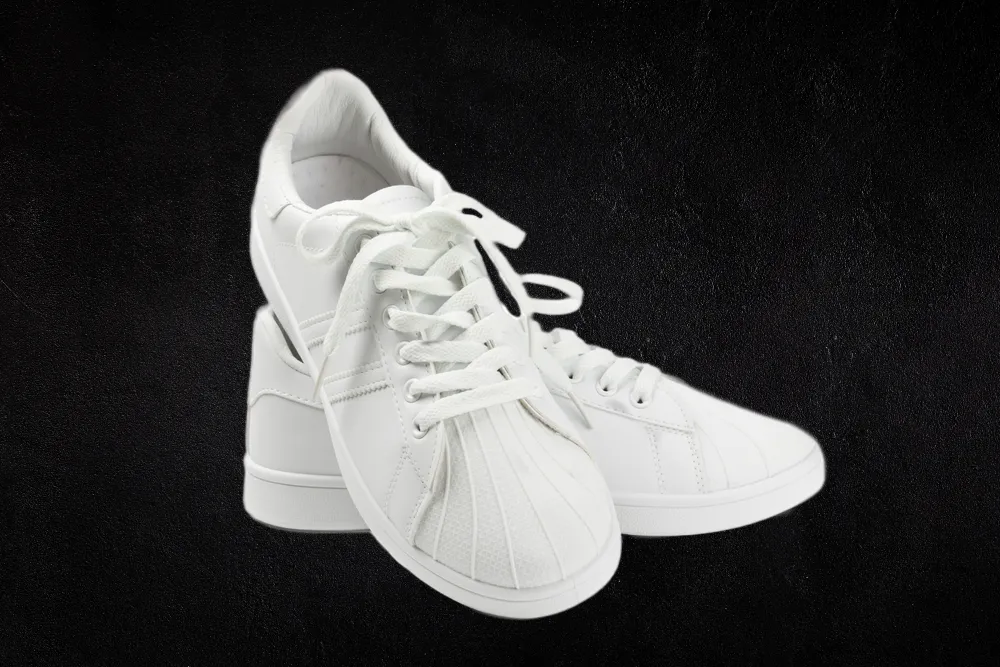
Dodaj czarne tło
Aplikacja i wtyczka
Dla macOS i Windows
- Zaawansowany edytor zdjęć AI
Wsparcie techniczne 24/7
30-dniowa gwarancja zwrotu pieniędzy
Dołącz do naszej społeczności

Często Zadawane Pytania
How to add a white background to a photo with Luminar?
Can I adjust the shade of white for the background?
Is there an option to undo or revert changes if I'm not satisfied with the results?
Can I add a white background to multiple photos at once?
Why Luminar is the best white background adder?
Who can benefit from Luminar white background maker?
• Product photographers creating clean eCommerce images
• Portrait photographers producing professional studio-style shots
• Online sellers preparing marketplace-ready product photos
• Content creators building polished promotional visuals
• Beginners who want quick professional white background edits
