
 요금제 보기
Add a White Background to a Photo for a Simple and Clean Style
A white background can help isolate the subject of the photo, making it stand out more prominently. This is often done in product photography and brand photos to remove distractions and draw attention to the main hero of your photo
지금 체험해보세요How to Use the White Background Maker?
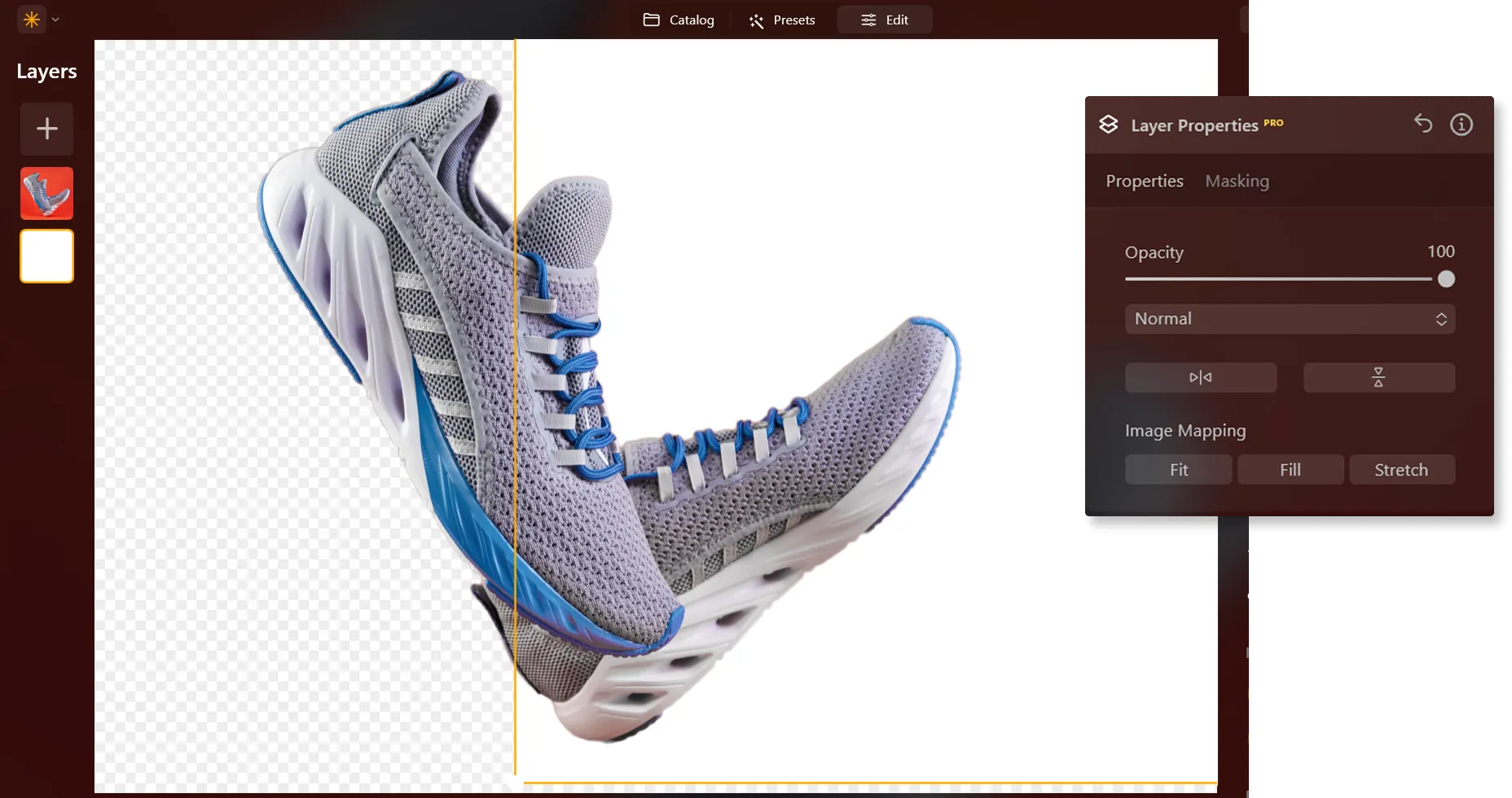
Remove the background in one click, and add a new white backdrop in Layers in a click.



Why is Making a Background White in Your Photo a Game-Changer?
Evoking Emotion Through Simplicity With the White Background Photo Editor

How to Seamlessly Add a White Background to a Photo?
Here’s a step-by-step guide on using Background Removal AI in Luminar:

Select an image: click the Edit tab

Layers Properties: select the Masking tab and choose Background RemovalAI

Selection: Select the chosen main object or choose from additional elements found in the image.

배경 제거: Click “Remove” to initiate the Background Removal process. Luminar will remove the image’s background, revealing a transparent checkbox background.

Click Refinement Brush for additional finetuning: A Transition Mask will appear, highlighting Transition in a white checkerboard pattern, Object in orange, and Background in blue. Select a brush and apply it to refine each section.

최종 이미지는 투명한 배경으로 나타납니다. 레이어 기능을 사용해 새로운 배경을 추가한 뒤 해당 레이어를 레이어 팔레트 맨 아래로 옮기세요. 그러면 새 배경에 이미지가 표시됩니다.
다른 기능 둘러보기




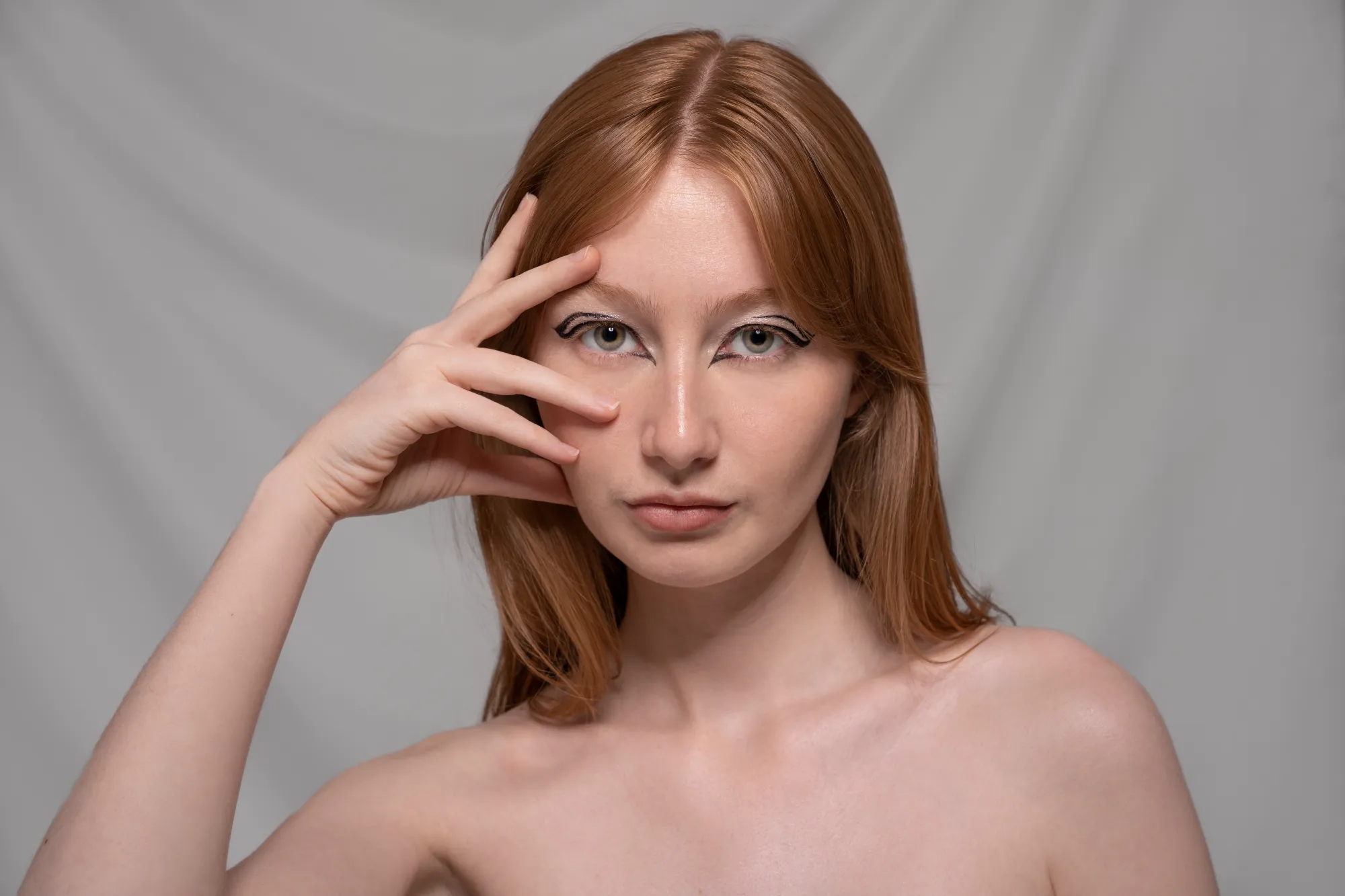
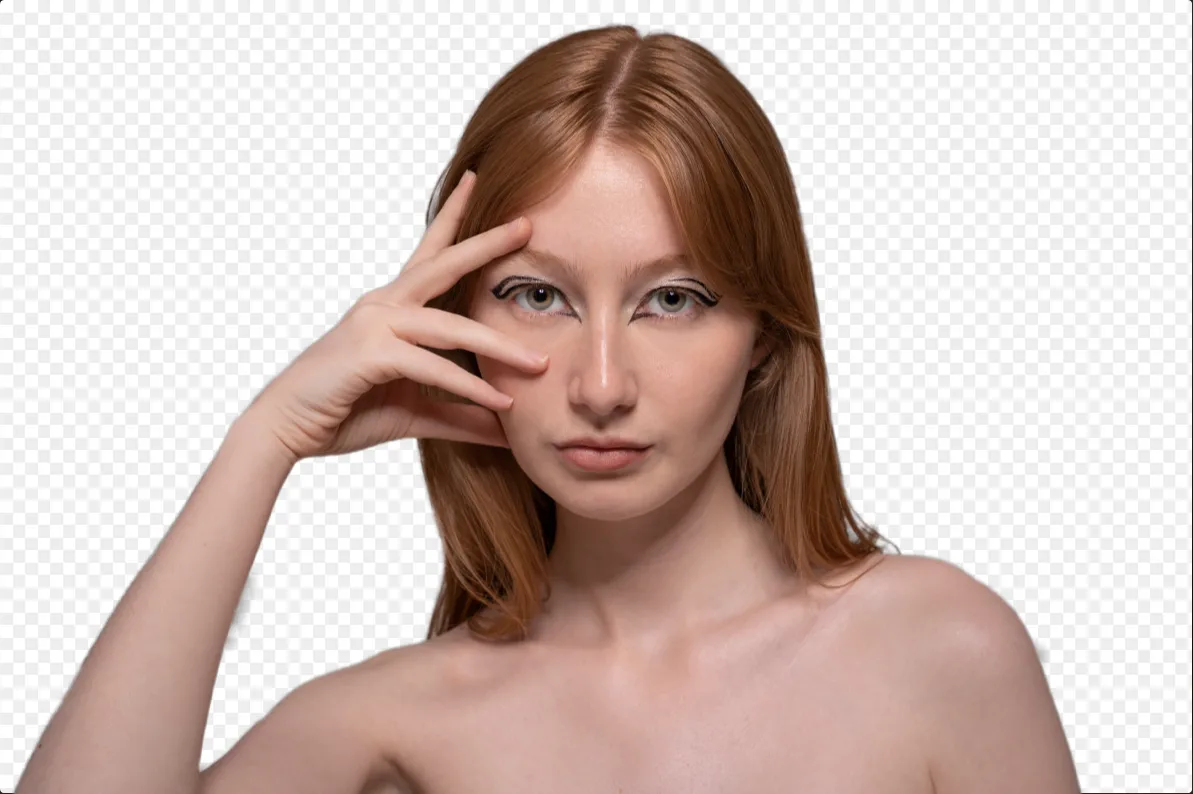



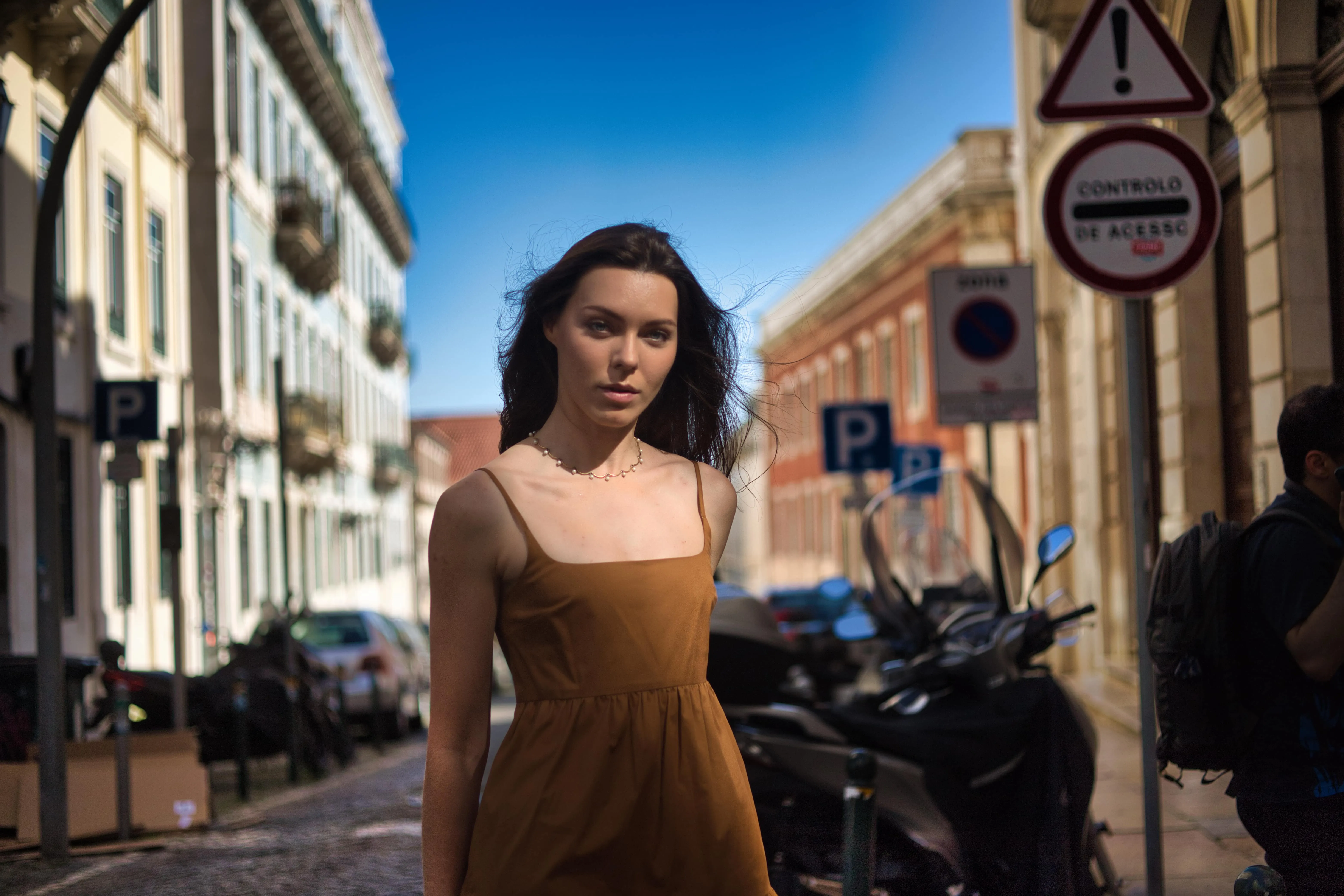
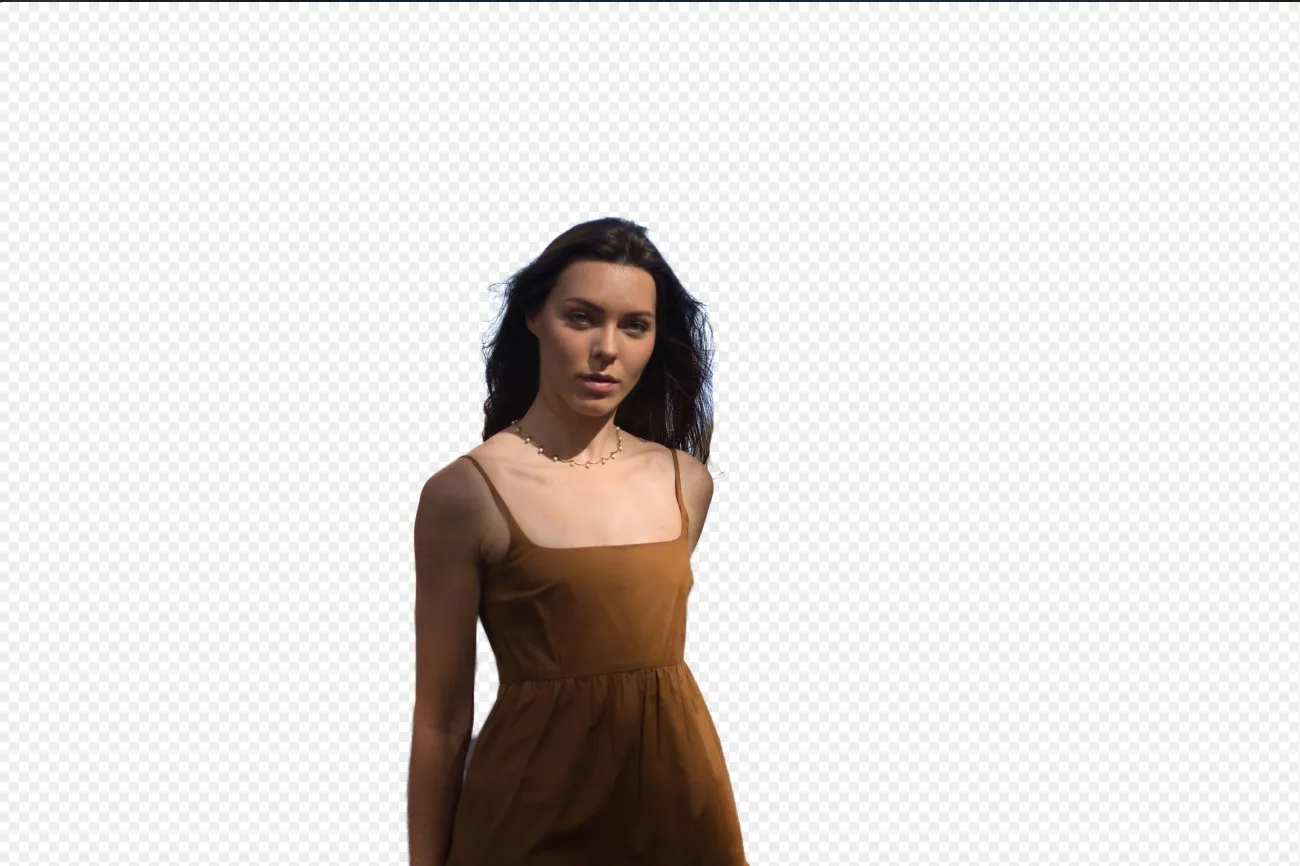



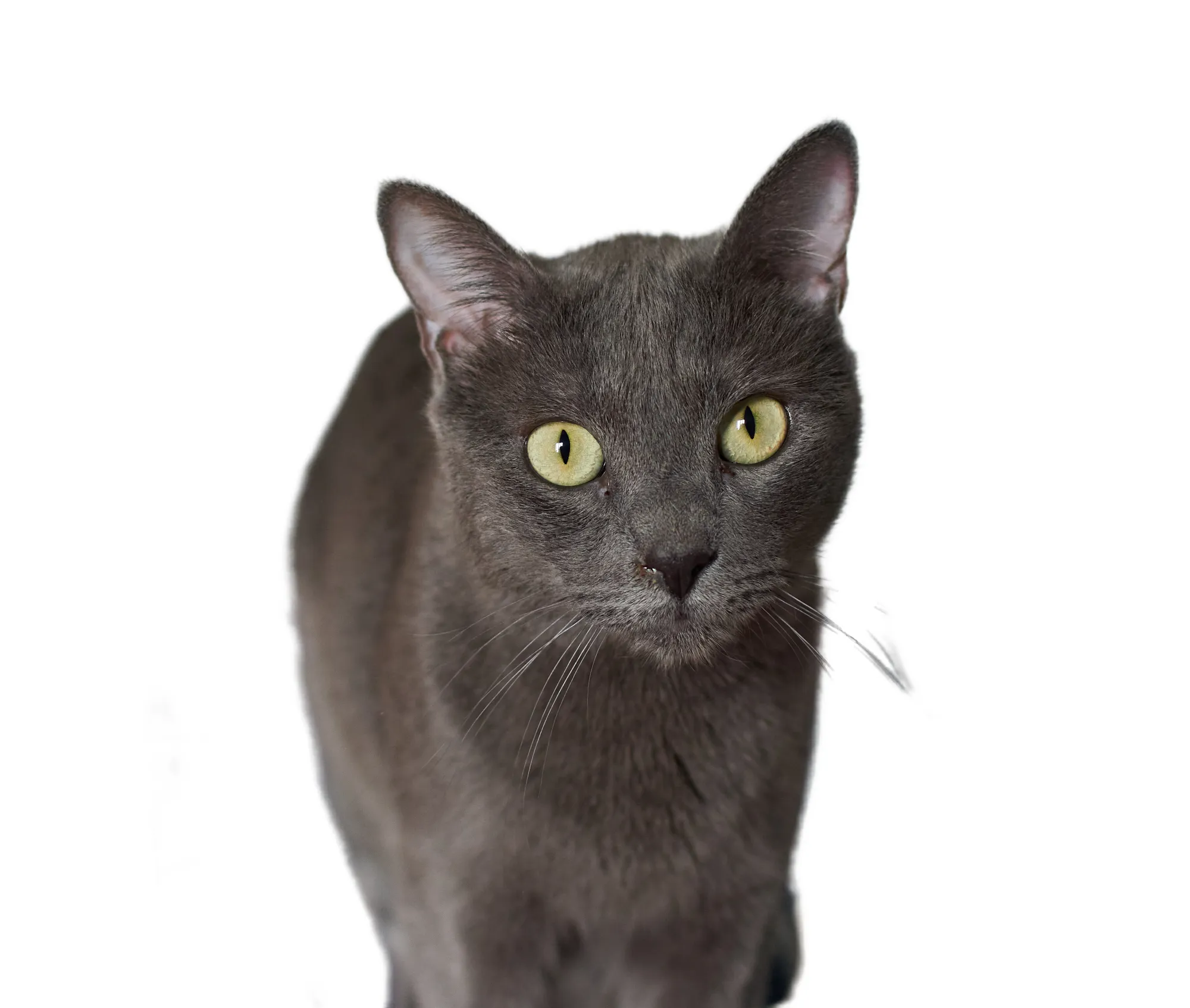
Remove White Background

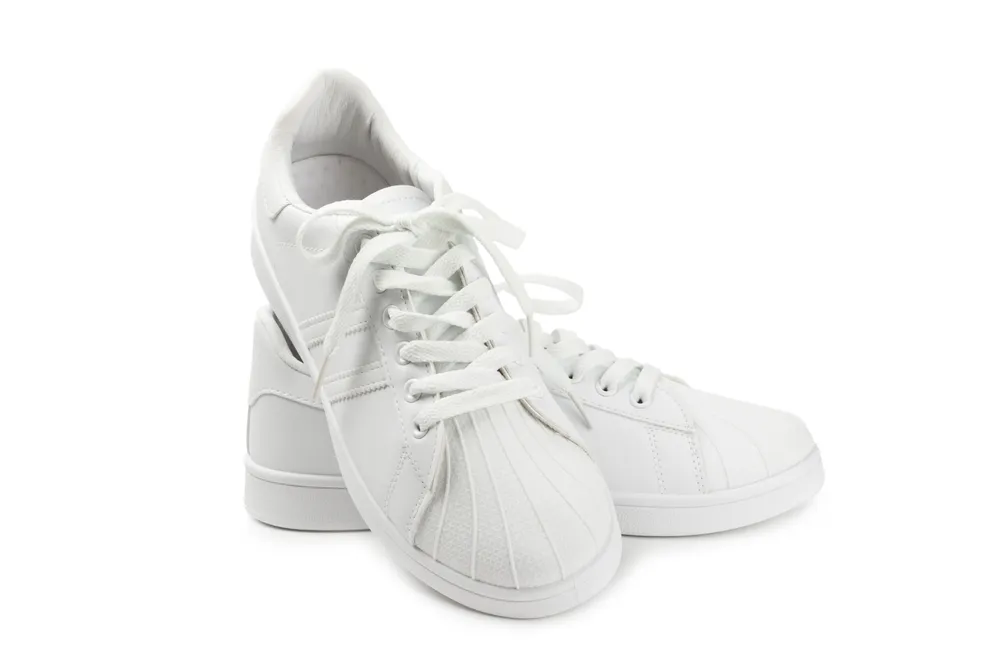
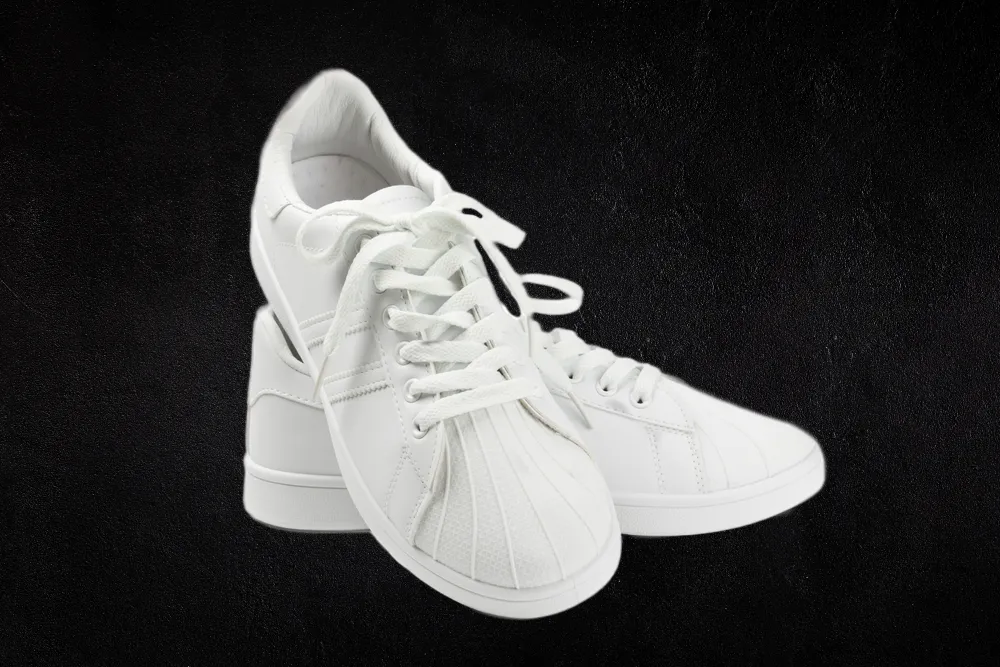
검은색 배경 추가하기
애플리케이션 및 플러그인
macOS 및 Windows 전용
- 고성능 AI 편집기
연중무휴 24시간 기술 지원
30일 환불 보장 정책
커뮤니티에 참여하세요

자주 묻고 답하는 질문
How to add a white background to a photo with Luminar?
Can I adjust the shade of white for the background?
Is there an option to undo or revert changes if I'm not satisfied with the results?
Can I add a white background to multiple photos at once?
Why Luminar is the best white background adder?
Who can benefit from Luminar white background maker?
• Product photographers creating clean eCommerce images
• Portrait photographers producing professional studio-style shots
• Online sellers preparing marketplace-ready product photos
• Content creators building polished promotional visuals
• Beginners who want quick professional white background edits
