

March 17
7 min. to read
How To Create An HDR Merge In One Minute
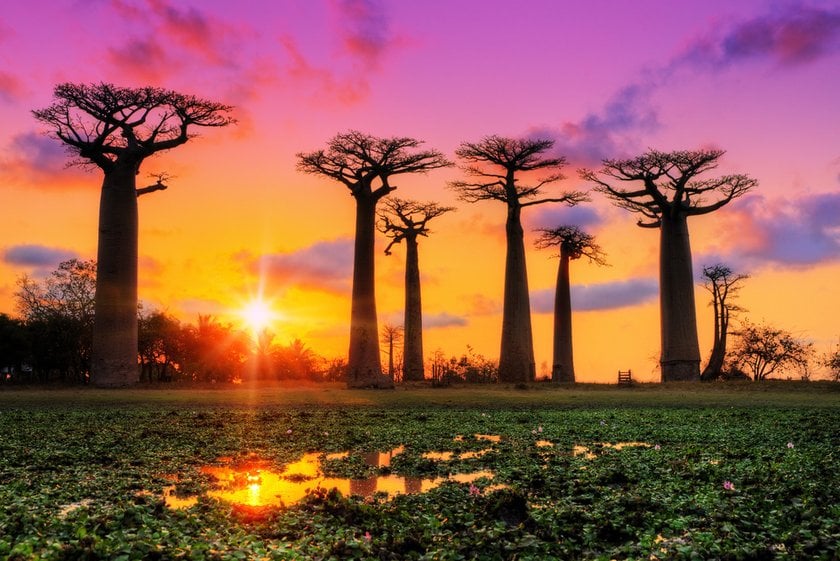
What if we told you that the secret to vibrant, awe-inspiring photos lies in a technique that’s as quick as making a cup of coffee? Yes, just one minute! Get ready because today, we're diving deep into the art and science of creating an HDR merge in one minute!
Advanced yet easy-to-use photo editor
Get Luminar Neo NowWhat is HDR
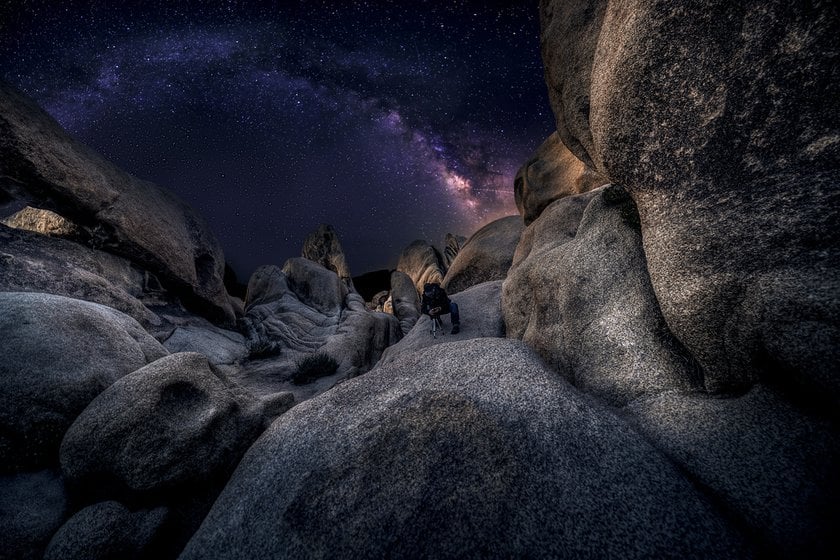
Ever come across photos that seem almost too vivid, too alive to be true? They capture the dimmest lights and the brightest shines, all in one frame. That, my friends, is the magic of HDR.
So, what is HDR? It stands for High Dynamic Range. In the simplest terms, it means capturing a broader range of light in a single image, from the darkest darks to the lightest lights. Think of it as seeing with a superhuman eye, capturing details even when there's a stark contrast in lighting.
But hold on, you might ask, what is an HDR file? An HDR file is the result of merging multiple photos, usually taken at different exposure levels, into one single image. This merged image now carries details from all its "parent" photos, ensuring nothing is too dark or too bright. It's like combining the strengths of multiple pictures into one super-photo.
It also lets photographers get creative in new ways. Instead of just brightening a photo, HDR can take it to a whole new level. Think of it like giving your photos a superpower. It's not just about making them look better; it's about making them tell a better story.
Quick Preparation Steps Before The Merge

Before diving into the magic of the one-minute HDR merge, a bit of prep work is needed. Just like a chef gathers all ingredients before starting to cook, a photographer needs to set things right before merging. Let's get you prepared!
Choosing the Right Photos: It all starts with picking the perfect shots. For a great HDR, you'll need photos with varying exposures. Some will be darker (underexposed) and some brighter (overexposed). This range ensures you capture all the details. So, understand those exposure differences and select photos that show a good contrast.
Aligning Your Shots: Ever noticed a photo that looks a bit off? That’s likely because the shots weren't aligned. For HDR, it's crucial to keep your camera stable. Use a tripod if possible. If you're shooting handheld, try to keep your hands as steady as possible. This ensures all your photos match up perfectly. After all, consistency is key.
Basic Software Requirements and Tools: Now, you don't need a supercomputer for this, but having the right software can make all the difference. Look for software specifically designed for HDR merging. Many of these come with user-friendly features that support our speedy one-minute method. For instance, Luminar Neo offers intuitive HDR tools that are both powerful and easy to use. The better the tool, the smoother and faster your HDR journey will be!
Once these steps are sorted, you're all set to dive into the fast and fabulous world of one-minute HDR merging. Get ready to see your photos like never before!
The One-Minute HDR Merge Technique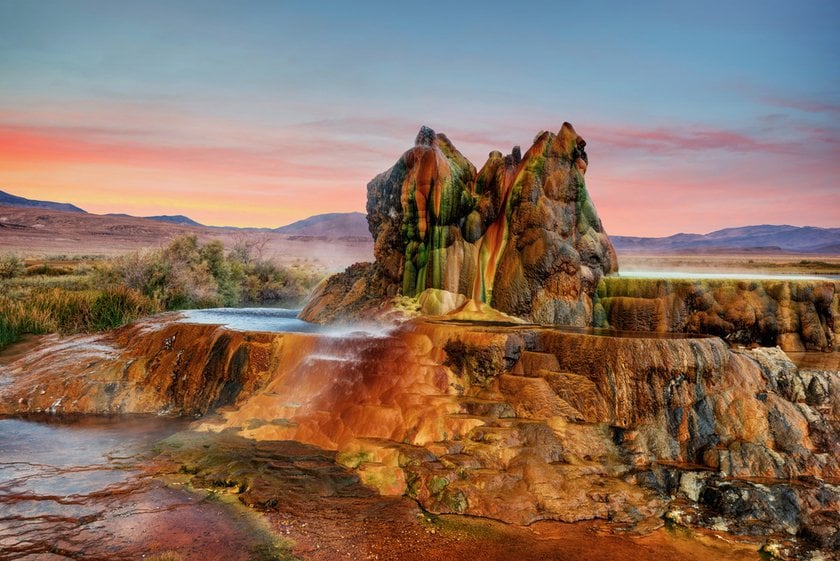
Want to create a clean, balanced HDR image in just a minute? Here’s how to do it step by step in Luminar Neo:
1. Import Your Photos
Open Luminar Neo and go to HDR Merge. Select your bracketed images (underexposed, balanced, and overexposed shots).
2. Enable Smart Alignment
Turn on Auto Alignment to fix any small camera movements between shots. You can also enable Ghost Reduction if there were moving elements in the scene (like people, trees, or water).
3. Click Merge
Press Merge and let Luminar Neo combine your images into a single HDR photo with balanced highlights and shadows.
4. Fine-Tune the Result
Once the merge is complete, adjust your image using Luminar Neo’s tools:
-
Exposure & Contrast — for overall balance
-
Highlights & Shadows — recover details
-
Color tools — enhance tones naturally
-
optional: Structure AI or Enhance AI for quick improvements
Keep it natural — the goal is depth and detail, not an overprocessed look.
5. Export Your HDR Photo
When you're happy with the result, export your image in your preferred format and resolution.
Enhance Your Photography with HDR Merge
Get Started NowConclusion
Imagine taking the soft morning light and the bright noon sun and putting them in one picture. Sounds like a dream, right? But with our one-minute HDR method, it's real and super quick!
You don't need hours or fancy tricks. Just one minute, a few steps, and voila! Your photo transforms. So next time you're out with your camera, remember: awesome photos are just a minute away. Happy shooting!
 >
>


